Balance checks and posting
Bank Bridge extends the standard Cash Receipt Journal with a Bank Balance summary. It shows statement balance information in the bank account currency and the local currency so that the finance team can check the figures before posting.
Open the journal
From the Bank Bridge Statement, use Send statement to journal..., then Open Journal. Check the selected Batch Name and confirm that you are reviewing the expected statement lines.
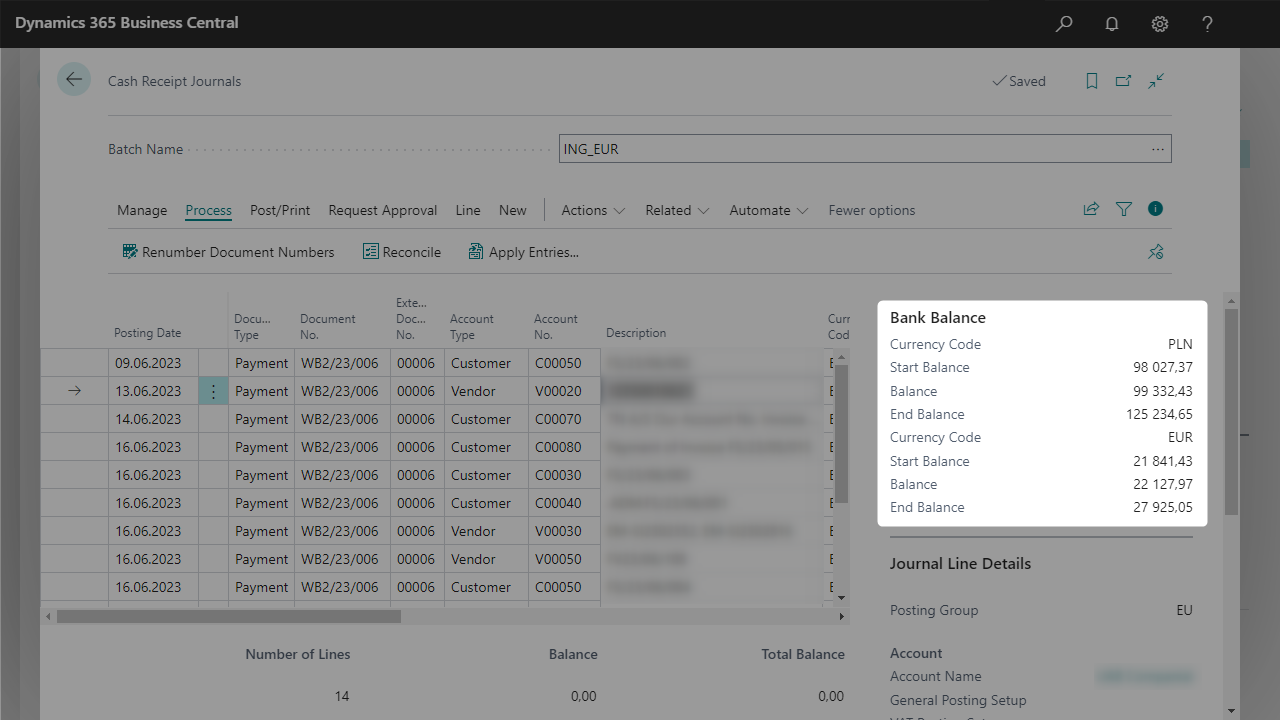
In this example, the summary contains values in PLN and EUR. Select the image to view it at full size.
Review the Bank Balance summary
The summary displays the following values for the currencies shown:
| Field | Meaning |
|---|---|
| Currency Code | The currency in which the balances are presented. |
| Start Balance | The opening balance for the statement. |
| Balance | The running balance after the transaction on the currently selected journal line, including that transaction. |
| End Balance | The closing balance for the statement. |
When you move to another line, Balance shows the balance after that line's operation. For example, selecting the tenth statement line lets you compare the balance after the tenth operation with the corresponding value on the bank's PDF statement.
Check the statement's start and end balances in the bank account currency against the figures supplied by the bank. Review the corresponding local-currency values as part of your accounting checks.
Always compare amounts expressed in the same currency. In the example, EUR amounts should be compared with the EUR statement figures, while the PLN section provides the local-currency view.
Find the line causing a balance difference
If the closing balance does not agree with the bank statement, use Balance to locate where the figures first diverge. This is particularly useful when an amount has been changed manually in the Cash Receipt Journal.
- Confirm that the opening balance agrees with the bank statement.
- Select a journal line and compare Balance with the bank's running balance after the same operation, where the statement provides it.
- Move through the corresponding operations until you find the first difference.
- Compare that line's amount and transaction details with the original bank statement.
- Correct the identified error, then recheck the running balances and closing balance before posting.
Example: a manually changed payment amount
Suppose the statement opens at EUR 10,000.00, followed by a receipt of EUR 1,200.00, a payment of EUR 350.00 and a fee of EUR 25.00. Someone changes the payment amount in the journal to EUR 530.00.
| Selected line | Running balance on the bank PDF | Balance in the journal |
|---|---|---|
| Receipt | EUR 11,200.00 | EUR 11,200.00 |
| Payment | EUR 10,850.00 | EUR 10,670.00 |
| Fee | EUR 10,825.00 | EUR 10,645.00 |
The first difference appears on the payment line. Comparing its amount with the source statement reveals the EUR 180.00 error. These figures illustrate the check; they are separate from the screenshot above.
Review the journal lines
Before posting, check:
- Posting dates and document numbers.
- Account types and account numbers.
- Amounts and currencies.
- The accounts assigned to fees, interest and other mapped operations.
- Customer and vendor ledger entry applications.
The standard journal's Apply Entries... action is available for reviewing or completing applications where needed.
If an account assignment needs to be corrected on the Bank Bridge statement, use Correct a statement before posting. Delete the statement's existing unposted journal lines manually, restore and correct the statement, then send it to the journal again.
If the figures do not agree with the statement, investigate the selected bank account, statement, journal lines and currency before posting. The troubleshooting guide provides a starting checklist.
Post after the review
Complete the normal Business Central journal posting process once the statement and journal checks are finished. Afterwards, verify the resulting entries and the customer or vendor applications for the transactions you reviewed.
If a correction requires processing the statement again after posting, follow Correct a statement after posting. Reverse the original postings through standard Business Central procedures before restoring and resending the statement. Restore Statement... does not reverse posted entries.