Payment journal setup
Configure outgoing payments at two levels:
- Bank Bridge Journal Template holds general payment parameters, including bank and fee defaults and the rule for vendors with a zero or negative balance.
- Bank Bridge Journal Batch selects the bank account, payment filters, export format and service for the batch.
Set up the template first, then create the batch that belongs to it.
Configure the journal template
- Open Bank Bridge Journal Template.
- Choose New, or use Edit List to update an existing template.
- Enter a Name and Description that identify the intended payment process.
- Set Bank Account Code and the applicable bank fee defaults.
- Decide whether to enable Create Transfer Even if Vendor Balance is Zero or Negative for this template.
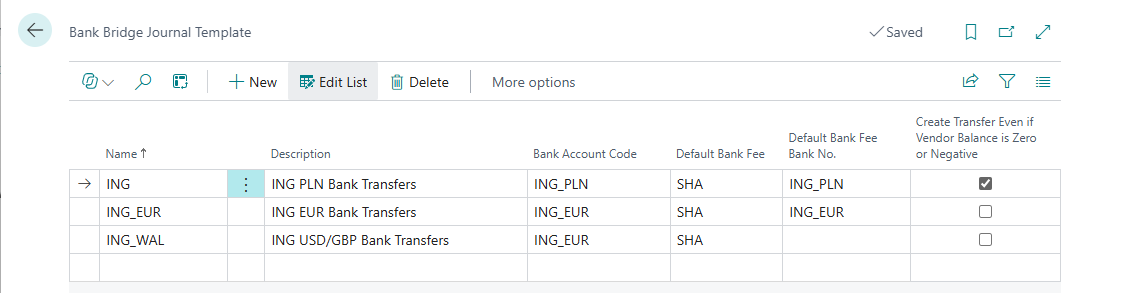
Select the image to inspect the template settings.
| Field | Purpose |
|---|---|
| Name | Identifies the journal template. |
| Description | Describes the bank or payment process covered by the template. |
| Bank Account Code | Bank account setting at template level. |
| Default Bank Fee | Default bank fee option for the template. Use an option supported by the selected bank format. |
| Default Bank Fee Bank No. | Bank account used in the template's default bank fee setup. |
| Create Transfer Even if Vendor Balance is Zero or Negative | Allows payment proposals for eligible invoices even when the vendor's overall balance is zero or negative. |
Pay invoices when the vendor's balance is zero or negative
A vendor can have unpaid invoices and other entries that offset the overall balance. For example, a deposit recorded on the vendor may make the balance zero or negative while individual invoices still need to be paid on their due dates.
Enable Create Transfer Even if Vendor Balance is Zero or Negative when this is the intended business process. The overall vendor balance will then not prevent the app from proposing payments for eligible invoices.
Review the invoices selected by the proposal. The setting does not mean that every invoice should be paid regardless of the other proposal criteria or the company's arrangements with the vendor.
Configure the journal batch
- Open Bank Bridge Journal Batch.
- Create a batch and select its Journal Template Name.
- Enter a Name that users will recognize when selecting the payment batch.
- Select Bank Account No..
- Set Currency Code Filter and Payment Method Filter for the payments to include.
- Select the Export Format required by the bank.
- Set Service Code where the configured bank integration requires it.
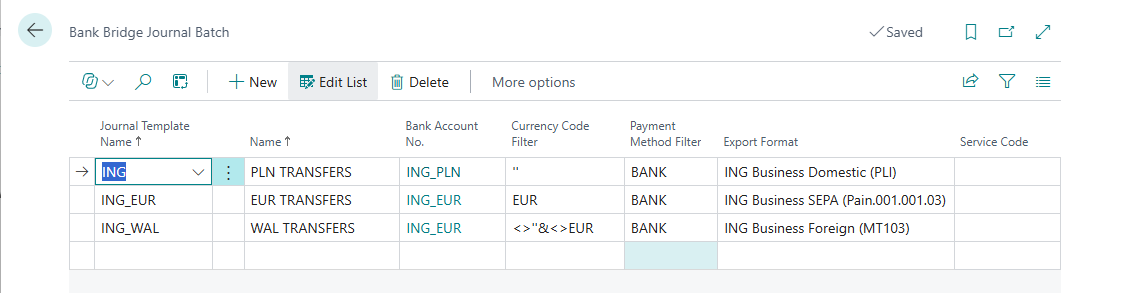
The example separates domestic, EUR and other foreign-currency transfers into different batches.
| Field | Purpose |
|---|---|
| Journal Template Name | Links the batch to its Bank Bridge journal template. |
| Name | Identifies the batch. |
| Bank Account No. | The bank account used for payments in this batch. |
| Currency Code Filter | Selects the document currencies included in the payment proposal. |
| Payment Method Filter | Limits the proposal to the selected payment method or filter. |
| Export Format | Determines the bank payment format used by Export. |
| Service Code | Identifies the bank service used by the configured integration, where applicable. |
The screenshot illustrates three export formats: ING Business Domestic (PLI), ING Business SEPA (Pain.001.001.03) and ING Business Foreign (MT103). These are example configurations for ING; choose the format agreed for your own bank and payment process.
Check the setup with a payment proposal
Open Bank Bridge Payment Journal, select the batch and run Prepare > Suggest Vendor Payments.... Review the proposed entries to confirm that the template rules, currency filter and payment method filter select the intended payments.
Continue with Outgoing payments for review, grouping and export.