Statement import setup
Use Bank Bridge Statements Setup to configure how each bank account's statement is imported and transferred to the Cash Receipt Journal.
The setup defines the import format, character encoding, destination journal and document numbering options.
Configure a bank account
- Open Bank Bridge Statements Setup.
- Choose New, or use Edit List to update an existing setup.
- Select Bank Account No..
- Select the Import Format used for statements from that bank.
- Set the Code Page to match the statement file's character encoding.
- Select the destination Journal Template Name and Journal Batch Name.
- Set the document numbering and description options for the statement process.
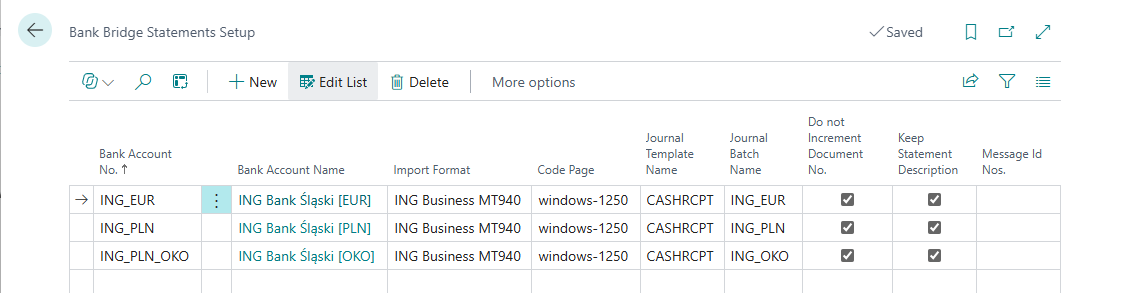
The example uses ING Business MT940, windows-1250 and the CASHRCPT journal template. Select the image to view all visible settings.
Main settings
| Field | Purpose |
|---|---|
| Bank Account No. | Identifies the Business Central bank account covered by this setup. |
| Bank Account Name | Shows the bank account's name. |
| Import Format | Specifies how Bank Bridge reads the bank's statement data. |
| Code Page | Specifies the statement file's character encoding. |
| Journal Template Name | Selects the Cash Receipt Journal template that receives the statement lines. |
| Journal Batch Name | Selects the destination batch within that journal template. |
| Do not Increment Document No. | Keeps one document number for the whole statement instead of assigning a separate number to each line. |
| Keep Statement Description | Controls whether the statement description is retained when preparing journal lines. |
Use one document number for a statement
Enable Do not Increment Document No. when the entire statement should be posted under one document number. Leave it disabled when separate document numbers should be assigned to the individual lines.
After sending the first statement to the journal, review Document No. on the lines to confirm that the numbering follows the intended approach.
Match the format and code page to the bank file
The screenshot shows ING Business MT940 with windows-1250. Treat these as example values. Select the format and encoding that match the statement supplied by your bank.
If imported descriptions contain incorrect characters, compare the file's encoding with the configured Code Page.
Prepare transaction mappings
Set up Operation code mapping for bank fees, interest and other operations that need a predefined account. These mappings complement customer and vendor recognition during import.
Then open Bank Bridge Statements and choose Home > Import Statement. Follow Bank statements to review the import and transfer it to the journal.