Email templates and languages
An email template identifies the report used for the message body. Its language rows supply the email subject and the Word layout. Configuration lines refer to the template by Email Template Code.
Create a template and its language rows
- Open Debt Collector Email Templates.
- Create a template with a Code, Description and Report ID. The supplied Payment Reminder report has ID 71521875.
- Select the template and choose Layouts to open Email Template Layout.
- Add a row for each required Language Code.
- Enter Email Subject and choose Report Layout Name for each row.
- Assign the template to the appropriate configuration lines.
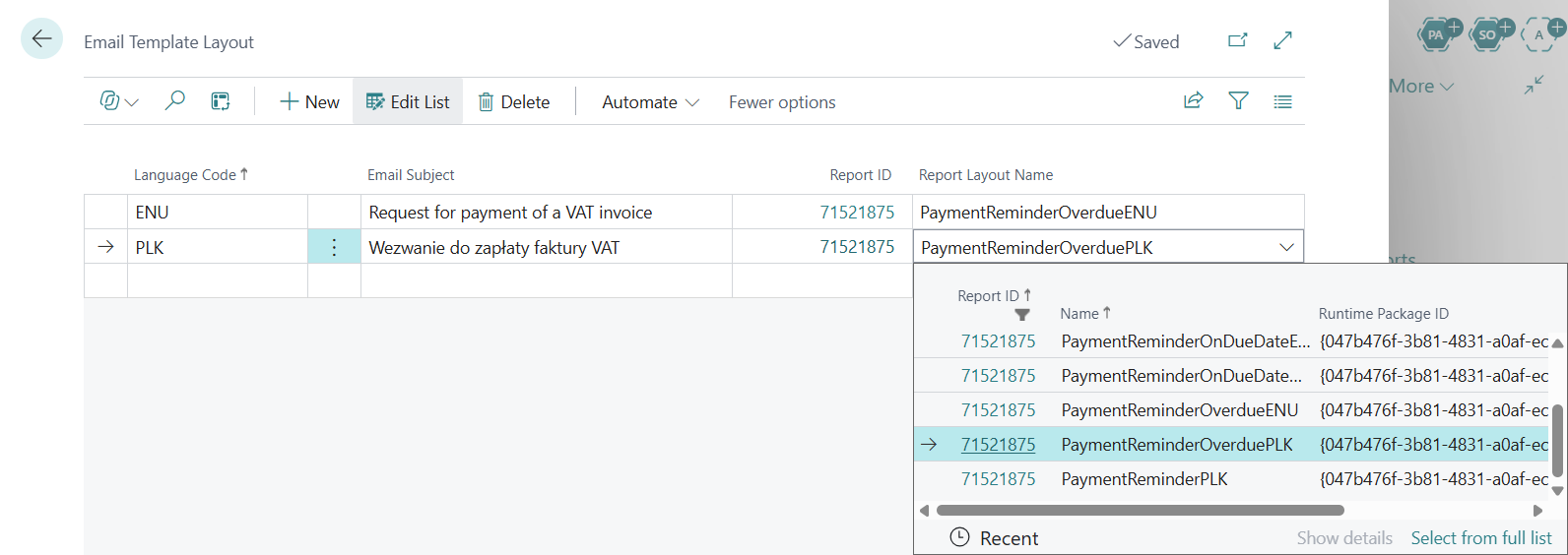
The current interface selects a Report Layout Name. The examples show English and Polish variants.
Language selection
The app first uses the customer's Language Code. When it is blank, the app uses Default Language Code from Debt Collector Setup. It then looks for that language in the selected template's layout rows.
If a customer has a language code but the template has no row for that language, version 1.0.2.0 leaves the language-specific layout unselected. It does not make a second lookup using Default Language Code. The report's default layout selection is then used, and the subject falls back to the template description when no language-specific subject is available.
Maintain explicit rows for the customer languages you support and preview each variant during the pilot.
Adapt a Word layout
Open Report Layouts and filter Report ID to 71521875. The supplied layouts include standard, before-due-date, on-due-date and overdue variants in English and Polish.
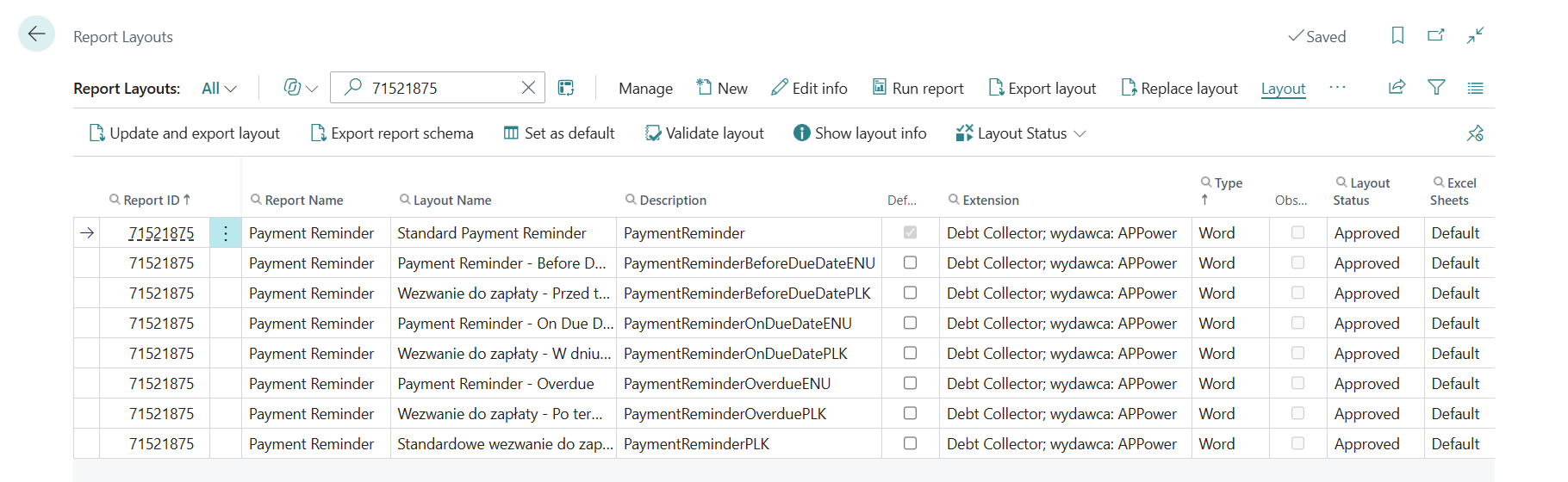
- Select a suitable layout and choose Export layout.
- Edit the Word document, preserving the report-field mappings and repeating invoice rows that you need.
- Return to Report Layouts and use New to import it as a user-defined layout for report 71521875. Use Replace layout when updating an existing user-defined layout.
- Choose Validate layout and review the output.
- Select the resulting layout in the relevant Email Template Layout row, then preview an actual Debt Collector message.
Layouts supplied by an extension are adapted through a user-defined copy. A layout designed from a blank Word document must also contain the report's dataset mappings; use Export report schema and the Word mapping tools to add the required fields.
See Microsoft's guides to creating report layouts and mapping data fields in Word layouts.
Review the message content
The Payment Reminder report provides invoice identifiers, dates, currencies, original amounts and remaining amounts, with local-currency values available as separate fields. It also provides customer and company information and a separate dataset for other open customer entries.
Use Remaining Amount fields for the amount currently requested on a partly paid invoice. If the layout displays other open entries, label that section separately from the invoice entries selected for this reminder.
For customers with more than one invoice currency, keep the currency visible on each line and use clearly labelled local-currency totals where an overall total is needed. Customer grouping does not create separate messages per currency.
Attach invoice PDFs
Enable Attach Document in Debt Collector Setup. For each selected invoice, the app looks for the posted sales invoice or posted service invoice and its corresponding Report Selections entry, then generates a PDF attachment.
The attachment is the invoice printout. The reminder body can show the remaining amount after partial settlement while the original invoice printout still shows the invoiced amount.
During the pilot, check that attachments exist and contain the intended document. A ledger entry without the corresponding posted document, such as some migrated opening entries, may have no invoice PDF available. See Troubleshooting.