Customer setup
Open a Customer Card and expand the Debt Collector section.
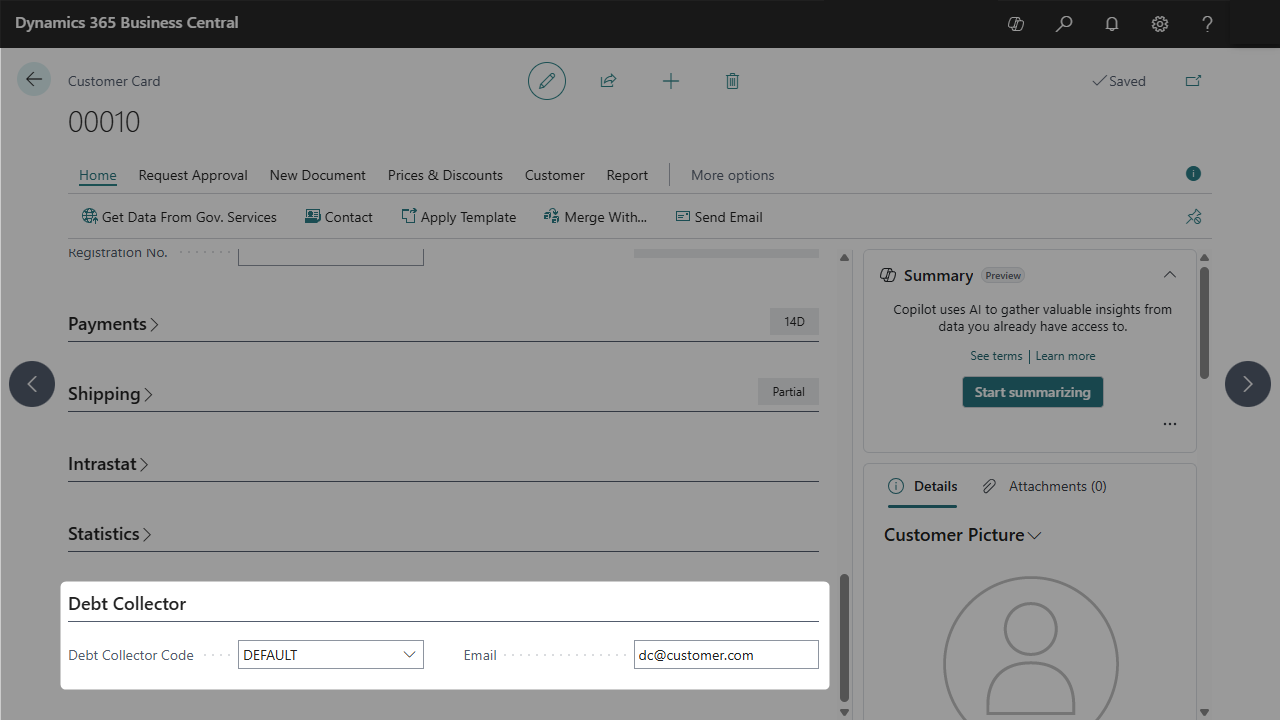
The example assigns configuration DEFAULT and a dedicated collection email address.
Include or exclude a customer
Set Debt Collector Code to the configuration that applies to the customer. Review the configuration's Active setting and its date rules.
Leave Debt Collector Code blank to exclude the customer from configuration-based collection processing. This can be used for VIP customers or accounts handled individually by the finance team. A configuration named DEFAULT is not applied automatically to customers with a blank code.
Choose the recipient
The app searches for an address in this order:
- Email in the customer's Debt Collector section.
- The standard E-Mail field on the customer card.
- E-Mail on the contact identified by the customer's Primary Contact No.
Use the Debt Collector field when payment reminders should go to a dedicated accounts-payable contact. A blank value in that field alone does not exclude the customer.
If no address is available, message preparation raises an error. Complete the address information and check that it is valid before running the preparation process again.
Language
Set Language Code on the customer card and maintain the matching language row in each email template used for that customer. If Language Code is blank, the app uses Default Language Code from Debt Collector Setup.
See Email templates and languages for the behavior when a template-language row is missing.
Exclude an invoice or update its amount
Set On Hold on the relevant Customer Ledger Entry to exclude that entry from message preparation. Debt Collector selects only entries with an empty On Hold value.
Apply incoming payments and credit memos through the normal Business Central process before preparing messages. For a partly settled invoice, the message uses the remaining amount when it is prepared. An unapplied payment does not automatically reduce a particular invoice's remaining amount.
For an invoice's notification history, open Customer Ledger Entries and review the Sent Notifications FactBox. Check each notification's status as described in Working with the outbox.