Configurations and date rules
A configuration contains date rules and the email templates associated with them. Assign a configuration to each customer who should participate in collection processing.
Create a configuration
- Open Debt Collector Configuration Codes.
- Choose New, enter a Code and Description, and open the configuration card.
- Add lines with Data Formula and Email Template Code. The interface uses the caption Data Formula for the date-formula field.
- Check the line order and the messages selected by those rules.
- Enable Active when the configuration is ready for processing.
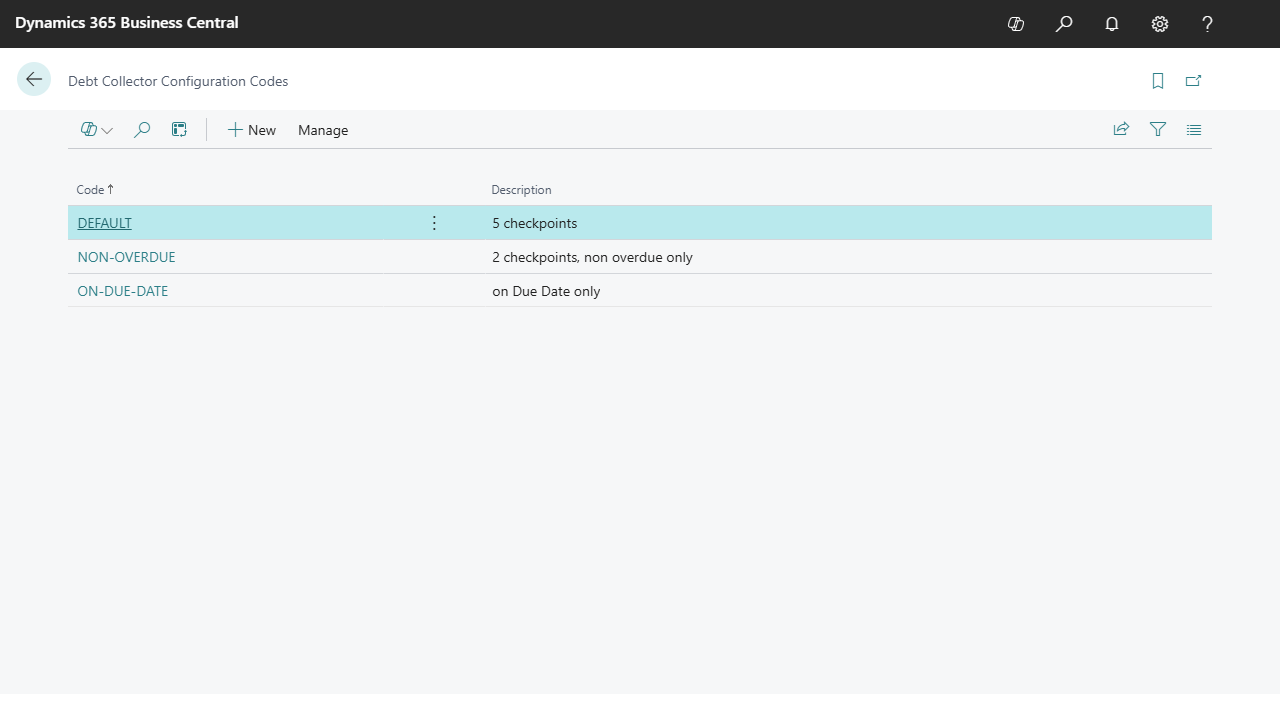
Codes and descriptions are examples. The name DEFAULT does not automatically assign a configuration to customers.
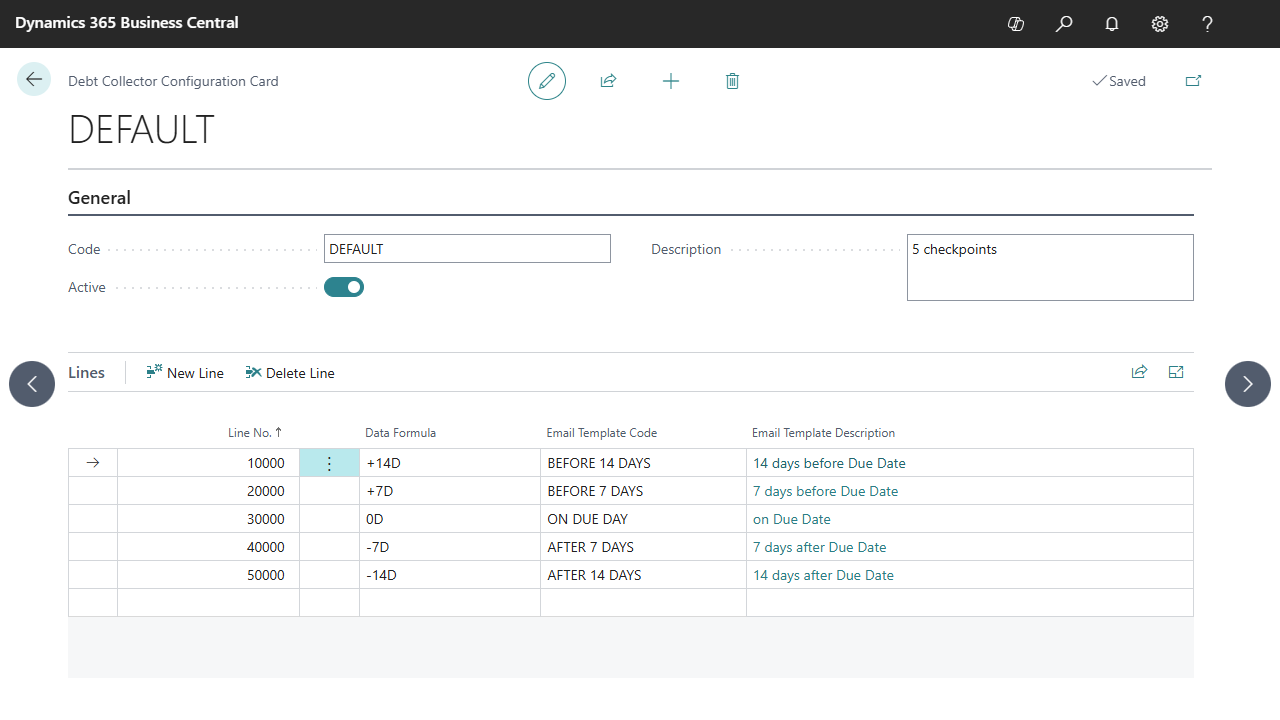
This screen illustrates the fields and a set of date rules. Apply the selection rules below when reviewing a configuration with several lines.
Which invoice entries are selected
The preparation process evaluates customers assigned to the active configuration. An invoice entry must meet all of these conditions:
- Document Type is Invoice.
- Open is enabled and Reversed is disabled.
- Document No. is not blank.
- Remaining Amount is greater than zero.
- On Hold is blank.
- Due Date is on or before the cutoff calculated for the configuration line.
Partly paid invoices are processed using their remaining amount at preparation time. Payment and credit-memo entries are not selected as invoice reminder targets.
How the date cutoff works
The base date is Today, not Work Date. For each line, the app adds Data Formula to Today, then selects eligible invoices whose Due Date is on or before that result.
| Data Formula | Cutoff | Invoices within the date selection |
|---|---|---|
+14D |
Today plus 14 days | Invoices due within the next 14 days, including invoices already due or overdue. |
+7D |
Today plus 7 days | Invoices due within the next 7 days, including invoices already due or overdue. |
0D |
Today | Invoices due today or earlier. |
-7D |
Today minus 7 days | Invoices whose due date was at least 7 days ago. |
-14D |
Today minus 14 days | Invoices whose due date was at least 14 days ago. |
A date rule is a cutoff, rather than a selection limited to one exact day. This distinction matters when choosing the wording of a message and combining several rules.
Line order and same-day processing
Lines are processed in Line No. order. When a message is prepared, the app records the configuration code, customer ledger entry number and current date. That combination is excluded from further preparation on the same day. The check applies when the message is created, before sending.
The check is shared by all lines of the configuration. An invoice handled by an earlier line will not be included again by a later line that day. On another day, an invoice that still meets the criteria can be selected again.
For example, with the displayed order +14D, +7D, 0D, -7D, -14D and Customer grouping, the first line already covers invoices due within 14 days as well as older invoices. Those entries will not be included by the later lines that day. A daily job schedule therefore does not by itself mean that messages are sent only on five exact milestone dates.
Template selection by grouping mode
| Mode | Template selection in version 1.0.2.0 |
|---|---|
| Customer | Uses the Email Template Code of the configuration line currently selecting the entries. |
| Document | Resolves a template for the individual invoice by scanning configuration lines in order. It keeps the last existing template whose condition Today >= invoice Due Date + Data Formula is met. If none qualifies, it looks for an email template with code DEFAULT. |
Document-mode template selection uses a different date comparison from the cutoff used to gather invoice entries. Preview the result for both grouping modes if you intend to support both. Test invoices before, on and after their due dates with the actual line order and templates before scheduling customer communication.
Process manually
Choose Process Configuration on the configuration card to prepare messages for that configuration. Inactive configurations are skipped. The Process action on Debt Collector Email Outbox prepares messages for all active configurations.
These actions create messages; the separate sender process performs delivery.